 Send to Webhook by imisofts
Send any web page to n8n, Make or Zapier in one click
Send the page you are on, a link, an image or text you select to your own webhook as clean JSON, and see your workflow's reply right away. No account needed.
Send to Webhook is on its way to the Chrome Web Store. This button turns into Add to Chrome once Google approves it.
- No account
- Sends only to webhooks you add
- imisofts receives nothing
- 3 ways to send: the icon, right-click or a shortcut
- 21 fields the same JSON every time
- 10 webhooks, with one default
- Free no account, no sign-up
From web page to workflow in 90 seconds
Get a webhook URL, paste it, send a test, then send pages, selections and links.
Read the video transcript
What Send to Webhook does
Still copying web pages into your automations by hand? Send to Webhook sends any page, link, image or text you select to your own n8n, Make, Zapier or Clay workflow.
Step 1: get your webhook URL
First, get your webhook URL. In n8n, add a Webhook node, set it to POST, copy the Production URL, not the Test URL, and publish the workflow. In Make, Zapier or Clay, create a webhook trigger and copy its URL. It should start with https. Plain http only works for a local n8n.
Step 2: paste it, Allow, Send test
Paste it into the settings page that opens after you install, and click Save. Chrome asks once to allow that website. Click Allow. Then click Send test. A 200 and your workflow's reply mean it's connected.
Step 3: send a page, a selection or a link
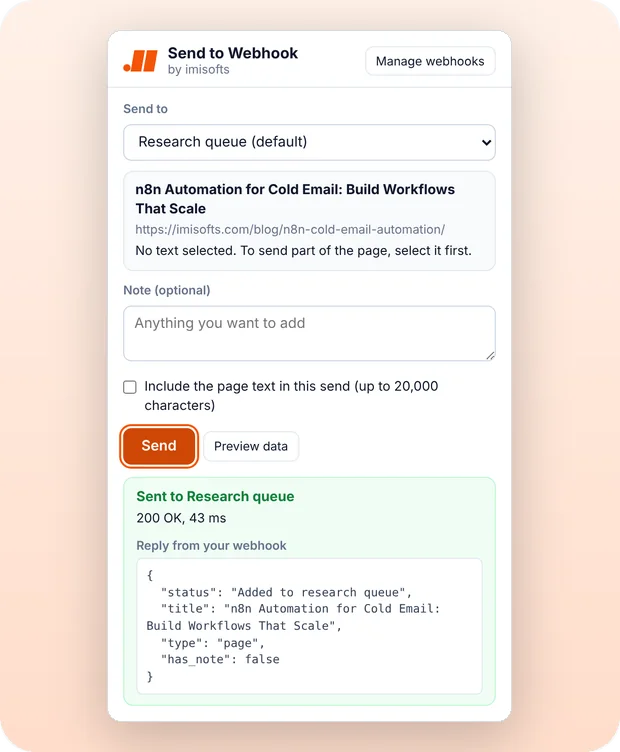
Now, on any page, click the icon. You'll see the page and any text you selected. Add a note if you like, and click Send. Or right-click a page, link, image or selection, and choose Send to.
The JSON your workflow gets
Your workflow gets the same clean JSON every time: type, URL, title, selected text, your note and more. Need the words on the page too? Tick Include the page text.
Fixes and privacy
If something's wrong, it tells you how to fix it, like publishing your n8n workflow. It only sends when you ask, only to your webhook, and never reads password or card boxes. Send to Webhook. Free, by imisofts.
Set it up once, then send from any web page
Works with n8n, Make, Zapier, Clay and any service that accepts a JSON POST.
-
1
Copy your webhook URL
Add a Webhook node in n8n, a Custom webhook in Make, a Catch Hook in Zapier or a Monitor webhook source in Clay, and copy its URL.
-
2
Paste it and send a test
Paste the URL on the settings page, click Save and choose Allow when Chrome asks. Send test fills every field with sample data, so your tool learns the structure in one go.
-
3
Send pages as you browse
Click the icon and press Send, right-click a page, link, image or selection, or open the popup with Alt+Shift+Y. In the popup, your workflow's reply shows right away.
- n8n
- Make
- Zapier
- Clay
- Any JSON webhook
Send exactly what you need
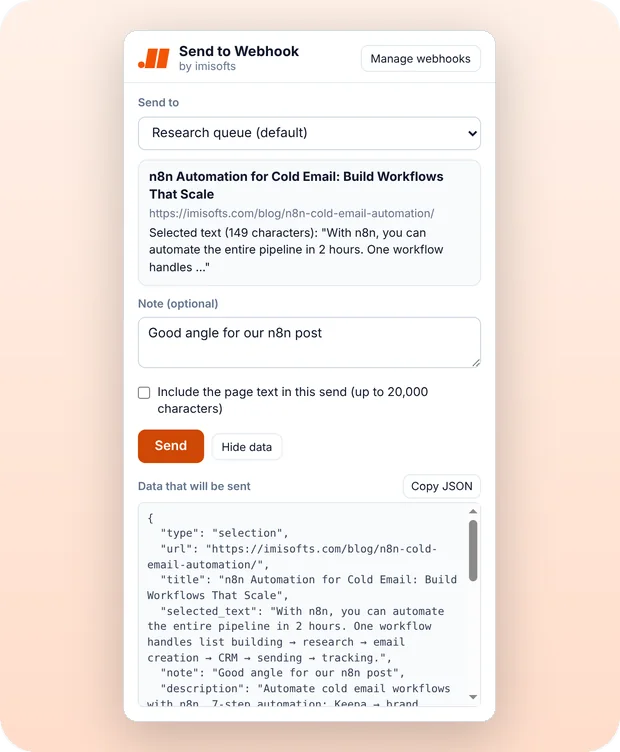
Select text, add a note and preview the JSON before it goes. The visible page text is sent only when you tick it, up to 20,000 characters.
- Right-click links, images or selected text
- Preview the JSON, or copy it
- The same fields every time, so you map them once
Works with n8n, Make, Zapier and Clay
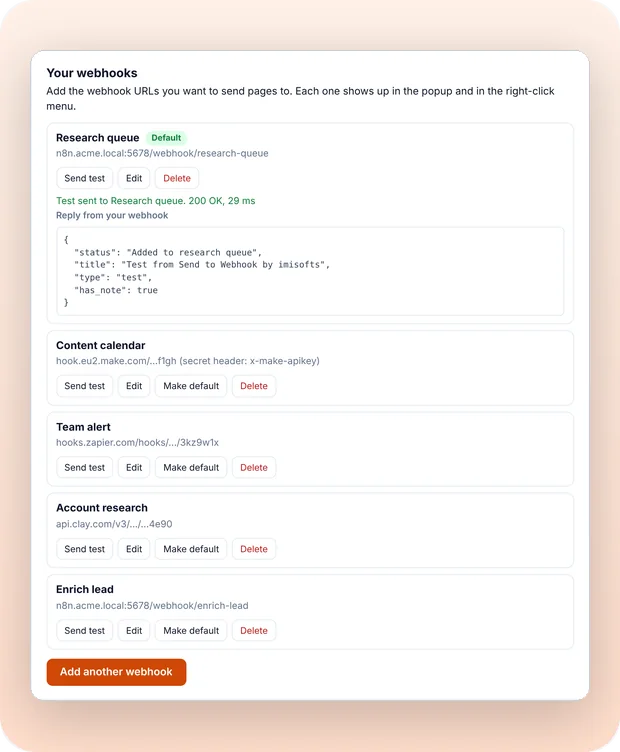
Save up to 10 destinations, pick a default and test each one before you rely on it. The setup steps for each tool are built in.
- An optional secret header for an API key or token your workflow checks
- Send test fills every field, so your tool learns them all
- The reply from your workflow is shown, formatted when it is JSON
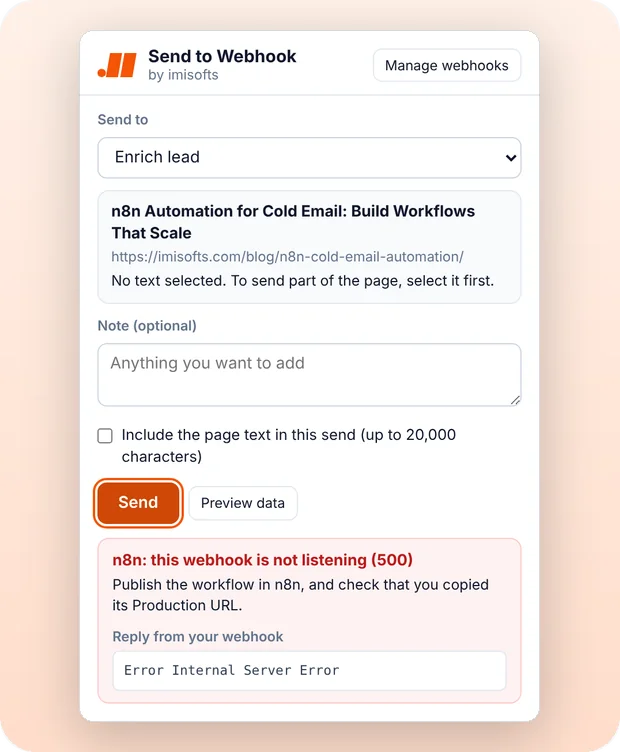
Plain-English fixes when a send fails
Not just an error code: the popup says what went wrong and what to do about it.
- Spots an n8n workflow that is not published, or a Webhook node not set to POST
- Explains timeouts, refused secrets, full Make queues and server errors
- If a right-click send fails, the icon shows ! and the popup explains why
What your workflow receives
One flat JSON object with the same 21 fields every time, posted to your webhook. Empty fields are sent as empty text. This is the sample the Send test button posts, with sent_at set to the time you send it:
{
  "type": "test",
  "url": "https://example.com/",
  "title": "Test from Send to Webhook by imisofts",
  "selected_text": "This is sample selected text.",
  "note": "Sent with the Send test button.",
  "description": "A test message. If your workflow received it, your webhook works.",
  "site_name": "Example",
  "canonical_url": "https://example.com/",
  "image_url": "https://example.com/image.png",
  "author": "Example Author",
  "published_time": "2026-01-01T00:00:00Z",
  "language": "en",
  "h1": "Example Domain",
  "link_url": "https://example.com/link",
  "link_text": "Example link",
  "media_url": "https://example.com/image.png",
  "page_text": "Sample page text.",
  "text_truncated": false,
  "sent_at": "2026-10-21T09:30:00.000Z",
  "sent_from": "Send to Webhook by imisofts",
  "extension_version": "1.0.0"
}
type is page, selection, link, image or test. page_text is filled only when you turn on Include the page text, and text_truncated tells you when text was cut at 20,000 characters.
What a correct webhook URL looks like
The right URL matters most. Here is where to find it in each tool.
- n8n
- Add a Webhook node and set HTTP Method to POST. Copy the Production URL, which looks like
https://your-n8n-domain/webhook/..., not the Test URL with/webhook-test/. Then publish the workflow. - Make
- Webhooks, then Custom webhook. Copy the URL, which looks like
https://hook.your-region.make.com/..., and switch the scenario on. - Zapier
- Webhooks by Zapier, then Catch Hook. Copy the URL, which starts with
https://hooks.zapier.com/hooks/catch/, and publish the Zap. - Clay
- Add, then Webhooks, then Monitor webhook. Copy the URL, which starts with
https://api.clay.com/v3/sources/webhook/.
It must start with https://. Plain http:// works only for local and private addresses, such as http://localhost:5678 for a self-hosted n8n. Building the workflow itself? Our guide to n8n automation for cold email walks through a full one.
Your pages go to your webhooks, and nowhere else
Only when you act
- It reads a page only when you click the icon, choose Send to, or press the shortcut
- No website access is granted at install: Chrome asks you to allow the site of each webhook you add, one at a time
- Password boxes, and boxes marked or named for one-time codes or card numbers, are never read
Only where you choose
- Data goes only to the webhook URLs you add
- Redirects are not followed, and no cookies are sent
- Your webhooks stay in this browser, and imisofts receives nothing
Questions about Send to Webhook
Is Send to Webhook free?
Yes. It is free, with no account, no sign-up and no paid plan.
Does it work with self-hosted n8n?
Yes. Paste your n8n Production URL. Webhook URLs must use https://, except local and private network addresses such as http://localhost:5678, 192.168.x.x or a .local name, which can use plain http://.
Why does my n8n webhook not answer?
Usually the workflow is not published, or the Test URL was copied. The Test URL, with /webhook-test/, only listens for 120 seconds after you click Listen for test event. Copy the Production URL, with /webhook/, set the Webhook node's HTTP Method to POST and publish the workflow. The extension tells you which of these it sees.
What exactly does it send?
One JSON object with the same 21 fields every time: the page address and title, any text you selected, your note, the page description and sharing tags, author, date, language, main heading, the link or image you right-clicked, and when and from where it was sent. The visible page text is added only when you turn it on, up to 20,000 characters.
Can I protect my webhook with a secret?
Yes. Add an optional secret header, such as an API key or token, and check it in your workflow. It is saved in your browser and sent only to that webhook.
How many webhooks can I add?
Up to 10, with one default. With more than one, the right-click menu lists them by name, and the popup lets you pick.
Is there a keyboard shortcut?
Yes. Alt+Shift+Y (Option+Shift+Y on a Mac) opens the popup. The shortcut that sends a page straight away has no default, so a page is never sent by accident. You can set one on Chrome's shortcuts page, chrome://extensions/shortcuts.
Does imisofts see the pages I send?
No. Pages go straight from your browser to the webhooks you add. imisofts runs no server for the extension and receives nothing. The details are in the extension privacy policy.
Want the workflow behind the webhook built for you?
imisofts builds n8n workflows, CRM automations and AI agents for B2B teams.
Check SPF, DKIM and DMARC in one click
 SPF, DKIM & DMARC Checker
Checks any domain's SPF, DKIM, DMARC and MX records in one click, and explains every fix in plain English. No permissions and no sign-up.
See the checker
SPF, DKIM & DMARC Checker
Checks any domain's SPF, DKIM, DMARC and MX records in one click, and explains every fix in plain English. No permissions and no sign-up.
See the checker
Coming soon to the Chrome Web Store
Free, with no account. Watch the demo now, and come back to add it to Chrome once Google approves it.
- No account
- Clean JSON
- imisofts receives nothing
n8n, Make, Zapier and Clay are trademarks of their owners. Chrome is a trademark of Google LLC. imisofts is not affiliated with them.